
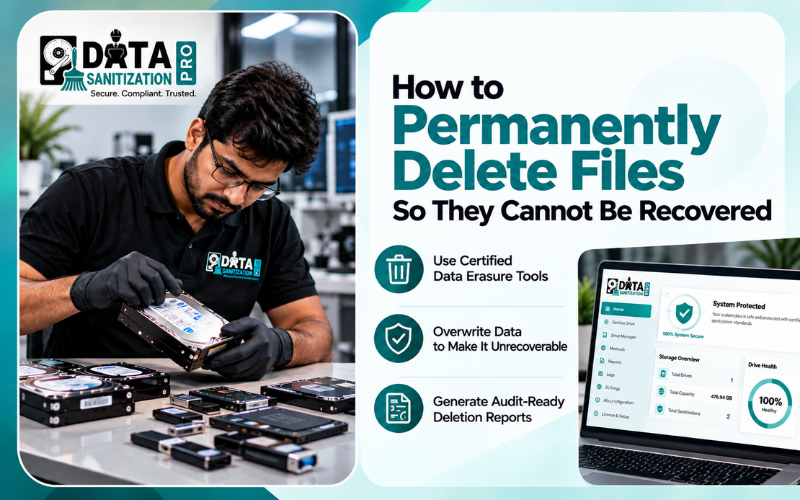
Deleting a file does not always erase its data permanently. When you delete a file or empty the Recycle Bin, the operating system may remove the file’s reference while leaving some data on the storage device. Depending on the device and deletion method, recovery software may still retrieve it.
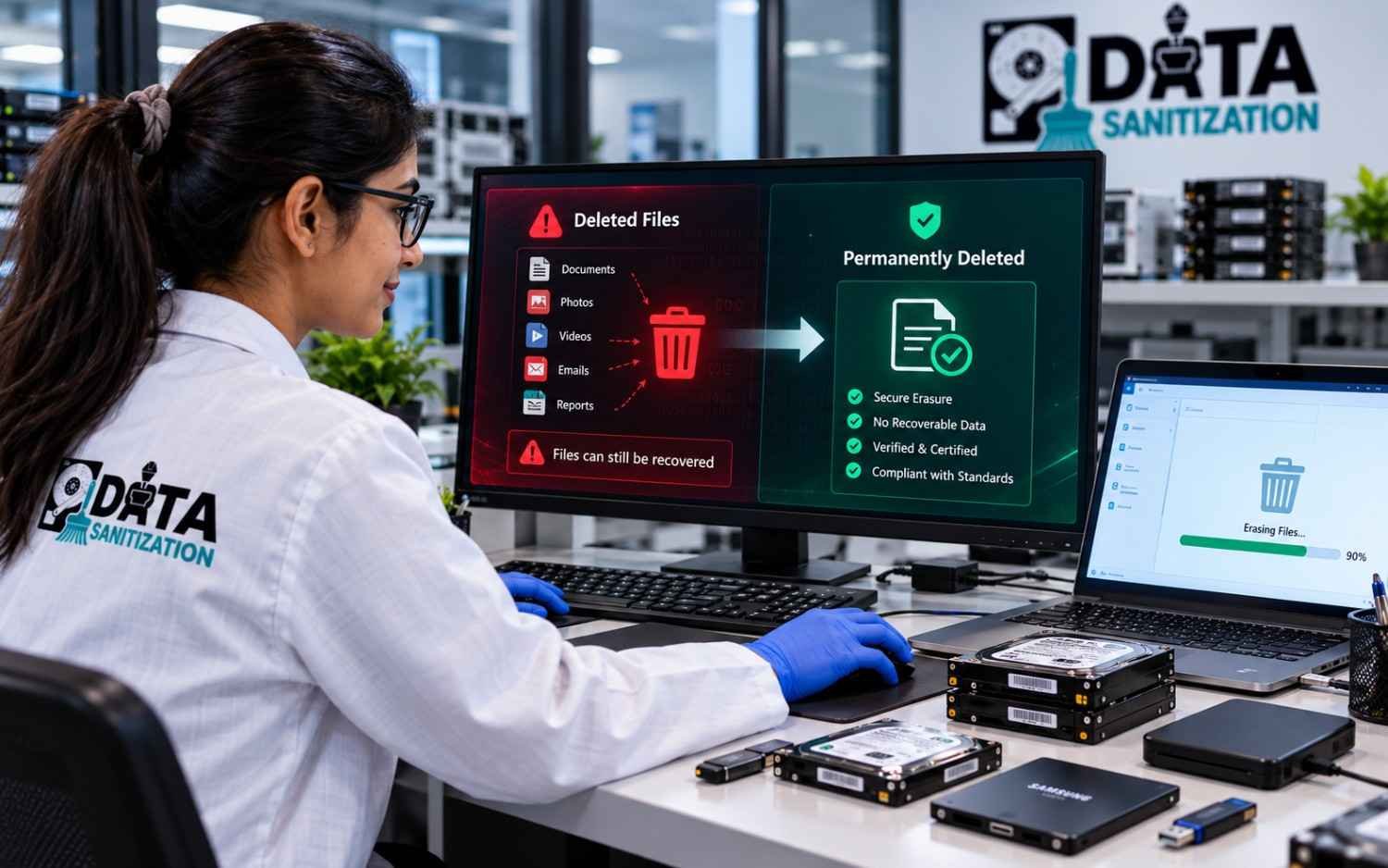
To permanently delete sensitive files, use a secure erasure method that matches your storage device, verify the result and check for other copies in backups, cloud storage and synced folders. Normal deletion and Shift + Delete are not reliable proof of secure erasure. For SSDs, traditional file overwriting may also be insufficient because of how flash memory manages data.
This guide explains how to permanently delete files on Windows, how secure file deletion differs from full-device sanitization, what to know about HDDs and SSDs and how Data Sanitization Pro can support secure and documented data erasure workflows.
1. Why Deleted Files Can Still Be Recovered
When you delete a file, the operating system generally removes its entry from the file system and marks the associated space as available for reuse. The original data may remain until that space is reused or an appropriate sanitization method addresses it.
For example, an employee deletes a spreadsheet containing customer information before handing a laptop to another employee. The spreadsheet may disappear from its folder, but that does not automatically prove that its contents have been securely erased.
The same risk can apply to financial records, identity documents, business contracts, employee information and confidential reports.
There are four common levels of data removal:
- Normal deletion: Removes a file from its usual location. The file may remain in the Recycle Bin.
- Permanent deletion through the operating system: Removes the normal restoration option, but does not necessarily sanitize the underlying storage.
- Secure file deletion: Uses an appropriate method to address selected files on supported systems.
- Full-device sanitization: Applies a suitable method to the storage device when it is being reassigned, transferred or retired.
No single method guarantees that every copy everywhere has been removed. Cloud versions, backups, email attachments, snapshots and files on other devices may need separate attention.
2. How to Permanently Delete Files on Windows
The right method depends on whether you want to remove a few files while continuing to use your computer or erase a complete drive before transferring it to someone else.
Method 1: Delete files and empty the Recycle Bin
This method is suitable for everyday file management, but it should not be treated as secure erasure.
- Open File Explorer.
- Find the file or folder you want to delete.
- Select it and press Delete.
- Open the Recycle Bin.
- Check the items before removing them.
- Select Empty Recycle Bin.
You can also press Shift + Delete to bypass the Recycle Bin for a local file.
Important: These actions remove the usual recovery route through the Recycle Bin. They do not independently verify that the underlying data is unrecoverable.
Method 2: Use Windows Cipher to overwrite unused space
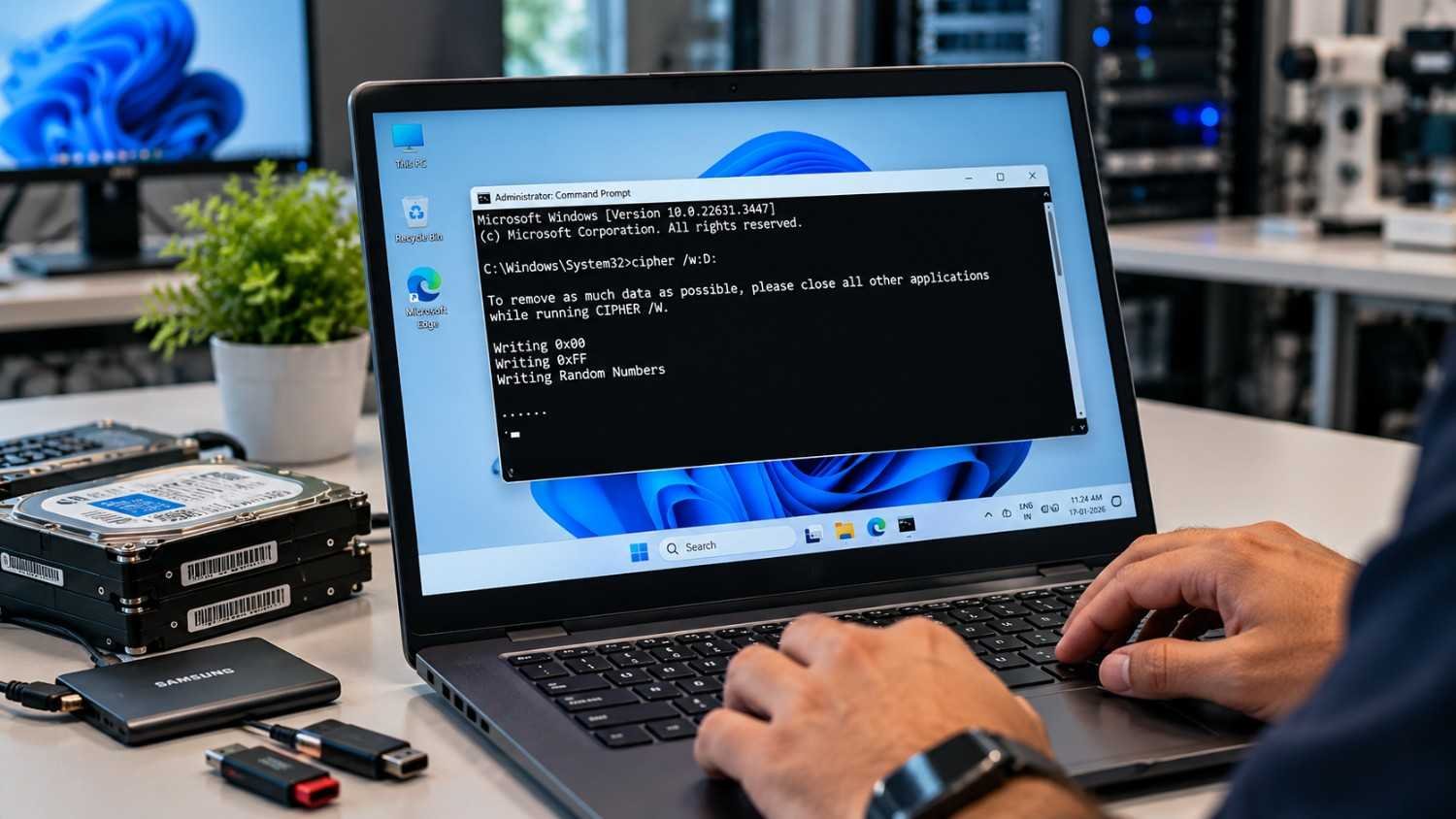
Windows includes a command called cipher /w that can overwrite available unused space on a supported volume. This may help address remnants of previously deleted files on suitable storage.
For example, on a supported Windows volume, the command is:
cipher /w:C
Replace C with the appropriate drive letter.
Before using it, understand these limitations:
- It targets available unused space on the volume, not one selected existing file.
- It can take considerable time, depending on the amount of unused space.
- It is not a universal solution for SSDs, cloud copies, backups or every storage configuration.
- It does not replace a suitable full-device sanitization process when a device is leaving your organization.
Microsoft documents /w as a command for removing data from available unused disk space on a volume.
Use this command only when you understand which volume it will affect and have confirmed that it is appropriate for your system.
Method 3: Use secure file deletion software
If you need to remove selected sensitive files while keeping the computer in service, a dedicated file-shredding or file-erasure tool may be suitable.
Before using one:
- Confirm whether the target storage is an HDD or SSD.
- Back up files you need to keep.
- Check that the software supports your operating system and file system.
- Select the intended files carefully.
- Review the operation result and any reported errors.
- Check for relevant copies in other locations.
A file shredder should not be assumed to reach every physical location containing old data, especially on SSDs. Its effectiveness depends on the implementation, storage technology and file-system behavior.
Method 4: Sanitize the entire drive
If you plan to sell, donate, reassign or retire a computer, deleting individual files may not be sufficient.
A suitable whole-device sanitization workflow may be more appropriate. First, back up the information you need and confirm the correct device. Then select a sanitization method supported by the drive and your security requirements.
Before releasing the device, review the result and investigate any errors. A standard operating-system reset may be useful in some circumstances, but it should not automatically be treated as independently verified sanitization.
For more information, read our guide on how to securely wipe a hard drive or SSD.
3. File Shredding vs. Free-Space Wiping vs. Data Sanitization
These methods address different data-removal requirements. Choosing the right one helps avoid both unnecessary work and gaps in data protection.
Method | What it does | Common use |
Standard deletion | Removes the normal file-system reference | Everyday file management |
File shredding | Applies a supported secure-deletion process to selected files | Removing specific sensitive files |
Free-space sanitization | Targets eligible unused storage space where deleted data remnants may remain | Addressing remnants of previously deleted files |
Full-device sanitization | Applies an appropriate sanitization method to a storage device | Device reassignment, reuse or retirement |
Physical destruction | Physically damages the storage medium | Situations where destruction is required and reuse is not intended |
File shredding is generally useful when you need to remove selected files while keeping a computer in service. Free-space sanitization addresses eligible unused space rather than simply deleting an existing file. Full-device sanitization is often the more suitable choice when a device is leaving your possession.
Physical destruction is a separate option for situations where a device cannot or should not be reused. The appropriate choice depends on the sensitivity of the information, the storage technology and the organization’s requirements.
For enterprise environments, the process should include clear responsibility, suitable methods, result validation and records of what was done.
4. HDD vs. SSD: Which Deletion Method Is Suitable?
The storage technology is one of the most important factors when selecting a secure file deletion method.
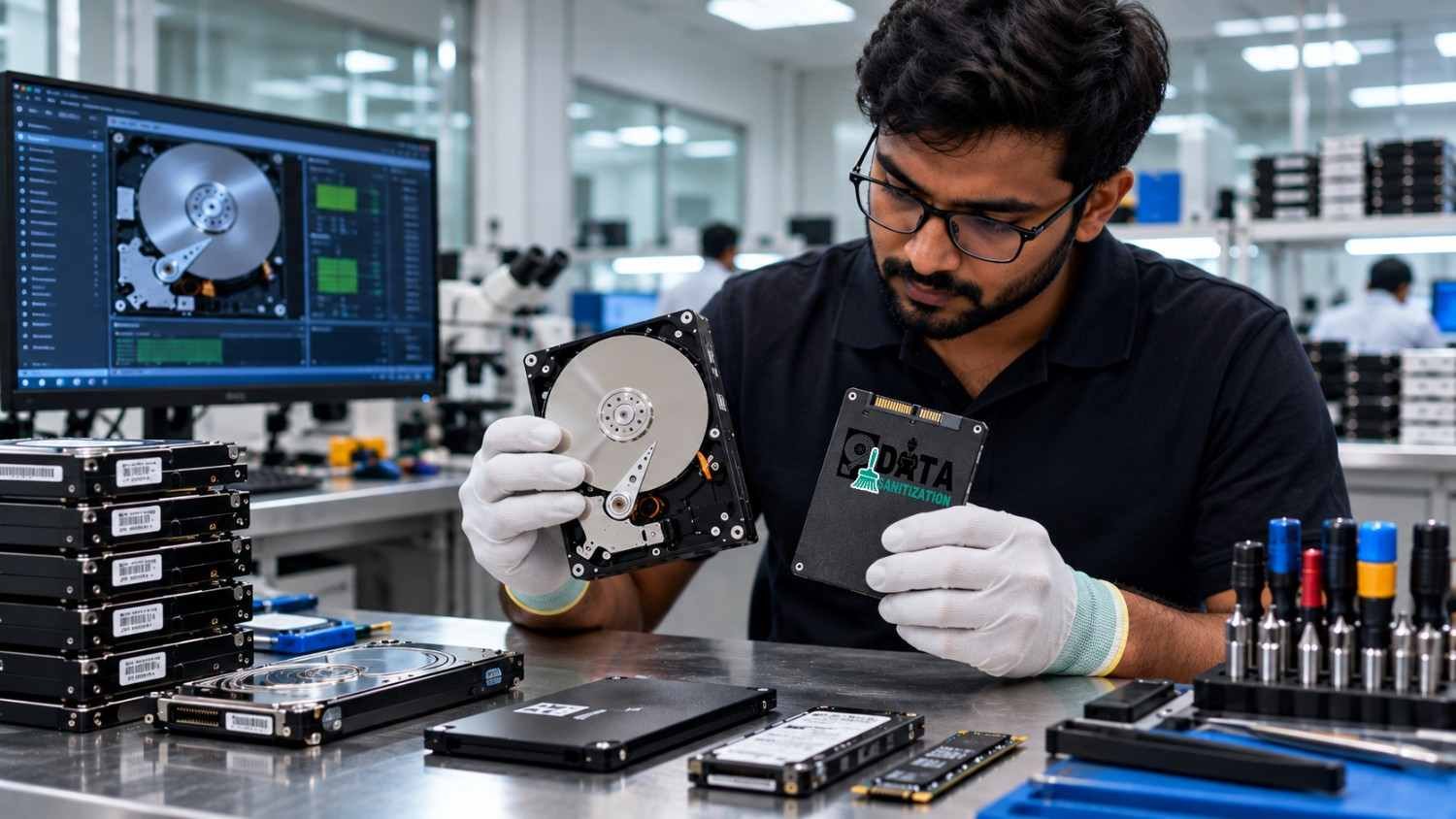
Hard disk drives (HDDs)
Traditional HDDs store data magnetically on rotating platters. Normal deletion generally does not immediately overwrite the sectors that held a file.
An appropriate overwriting method can help address data remnants on supported HDDs. However, the result depends on the method and whether the relevant storage areas were properly addressed.
Solid-state drives (SSDs)
SSDs use flash memory and manage data through a controller. Features such as wear levelling, garbage collection and spare storage areas can make ordinary file overwriting less predictable.
An overwrite performed through the operating system may not reach every physical location that could contain previous data. For this reason, a supported SSD sanitization or secure-erase method may be more suitable than relying only on traditional file shredding.
NVMe drives and removable flash storage
NVMe SSDs, USB flash drives and memory cards also require methods appropriate to their technology and supported capabilities. Do not assume that a technique designed for a traditional HDD will produce the same result on every flash device.
NIST SP 800-88 Revision 2, published in September 2025, provides guidance for building media sanitization programs and choosing appropriate methods based on information sensitivity and media requirements. It is a guidance document, not a certification for a particular software product.
For further guidance, read our article on how to wipe an SSD permanently.
5. Where Deleted Files and Hidden Copies May Remain
Secure file deletion involves more than checking whether a document is visible in its original folder.
Sensitive information may also exist in:
- Recycle Bin and temporary folders: Deleted items or temporary working files may remain until appropriately removed.
- Application data: Programs may create working copies, exports, caches or recovery files.
- Cloud-synced folders: A local deletion may not remove every online version or shared copy.
- Backups and snapshots: Backup systems may retain earlier versions under an organization’s retention policy.
- Email and messaging attachments: The same document may exist in sent messages, downloads or conversations.
- Shared drives and user profiles: Another employee or application may have copied the file.
- External drives and removable media: Copies may exist on USB drives, memory cards or external disks.
The right response is to identify where the data exists and apply the appropriate deletion, retention or sanitization process to each relevant location.
For cloud services, check the service’s deleted-items area, shared copies, version history and applicable retention settings. You generally cannot directly overwrite the physical storage blocks of a cloud provider’s servers. The available controls depend on the service and its policies.
Remember: Sanitizing one local file or drive does not automatically remove copies stored elsewhere.
6. How to Choose Secure File Deletion Software
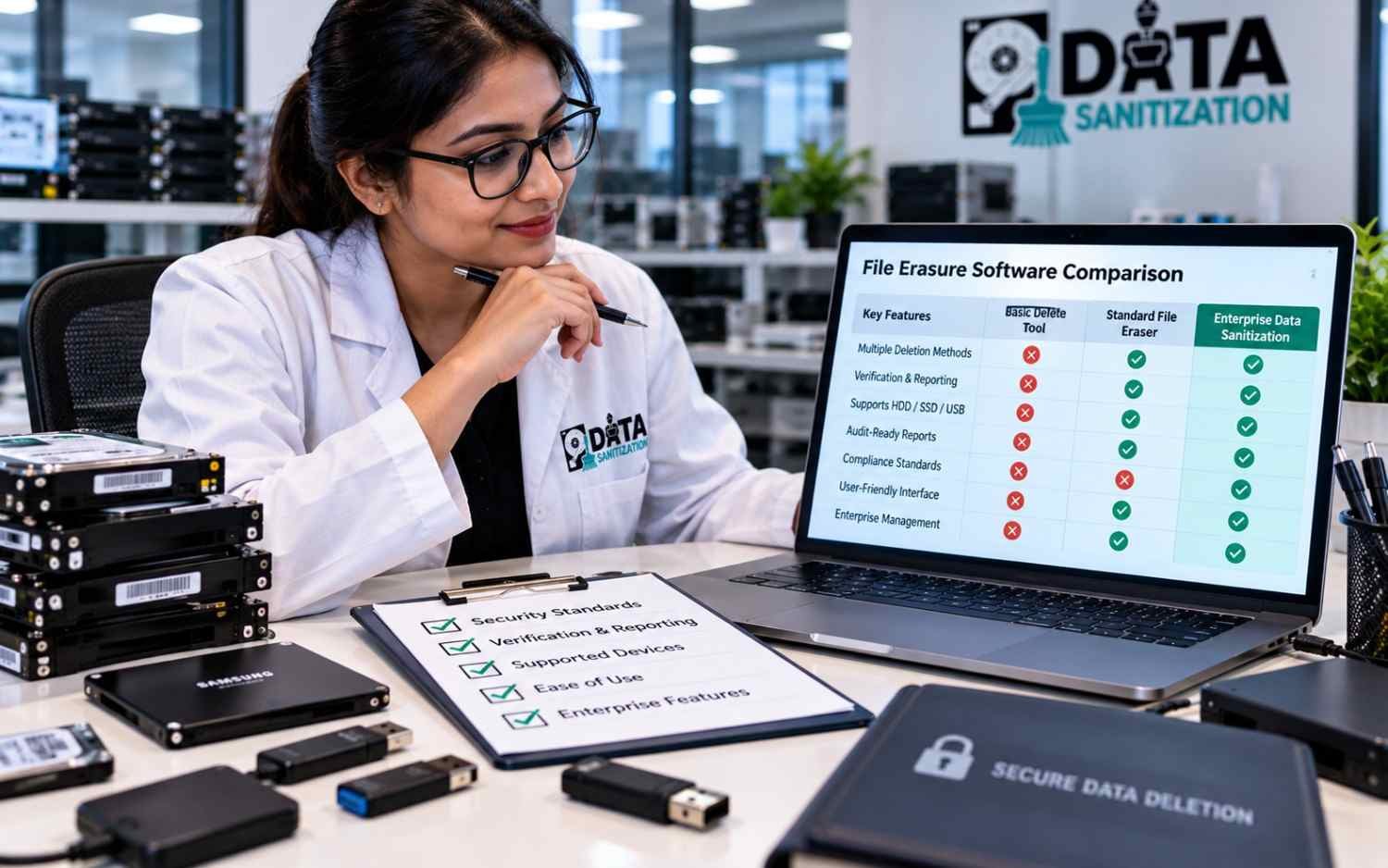
When comparing file eraser software and data sanitization software, look beyond a simple delete button.
Storage-device compatibility
Check whether the software supports the HDDs, SATA SSDs, NVMe drives, USB storage and other media in your environment. Compatibility helps determine which methods are available for a particular device.
Appropriate sanitization methods
Choose methods that match the storage technology, information sensitivity and intended use of the device. More overwrite passes do not automatically make every method more effective, particularly on flash storage.
Verification and error reporting
A successful-looking progress bar is not enough for sensitive business data. Review the available verification results, error messages and operation status before treating the task as complete.
Audit-ready reporting
For business use, reports should ideally identify the device, selected method, operation date, result and relevant operator or audit details. These records help support internal reviews and asset-management processes.
A report alone does not guarantee compliance. The method, process and evidence must meet the organization’s applicable requirements.
Flexible deployment and management
Organizations processing many devices may need offline operation, centralized monitoring, multi-device workflows and consistent reporting across locations.
The best software is the solution that fits your device inventory, workflow, security requirements and reporting needs.
7. How Data Sanitization Pro Supports Secure Data Erasure
Data Sanitization Pro is a data erasure platform designed to support secure, verifiable and documented sanitization workflows.
Depending on the supported device, selected method and deployment configuration, its capabilities include disk, partition, file and folder and free-space sanitization. It supports workflows for HDDs, SSDs, NVMe drives, USB storage and other supported media.
Key capabilities include:
- File and folder sanitization: Supports selected file-removal workflows where the target environment and storage are supported.
- Free-space sanitization: Helps address eligible unused space where remnants of previously deleted files may remain.
- Partition and disk sanitization: Supports broader data-removal workflows for appropriate targets.
- Multiple sanitization methods: Helps operators select a supported method according to the device and organizational policy.
- Real-time monitoring: Provides visibility into operation progress and status.
- Verification and logs: Helps operators review available verification results and operation records.
- Hardware assessment: Provides supported device health information, including SMART data where available.
- Audit-ready reporting: Supports reports containing relevant device, method, timing and result information.
- Flexible deployment: Supports online or offline workflows according to the applicable deployment and licensing configuration.
For IT teams, data centers, IT asset disposition providers and other organizations managing multiple devices, these capabilities can help standardize erasure procedures and improve visibility across device-handling workflows.
The correct method must still be selected for the target storage technology. Operators should review the result, investigate errors and confirm that the process meets their requirements before releasing a device for reuse or disposal.
Explore Data Sanitization Pro to learn more about its supported data erasure workflows, monitoring and reporting capabilities.
8. Best Practices for Businesses

Businesses should treat secure file deletion as part of their wider information lifecycle and asset-management process.
Create a clear data removal policy. Define when standard deletion is sufficient, when selected files require secure erasure and when full-device sanitization is necessary.
Match the method to the storage medium. HDDs, SSDs, NVMe drives and removable flash media may require different approaches.
Review other copies. Include cloud storage, shared folders, backups, email attachments and application data in the review where relevant.
Protect information that must be retained. Check legal, contractual and business retention requirements before removing records. Secure deletion should not bypass a valid retention obligation or legal hold.
Verify the outcome. Review the result and investigate errors or unsupported operations before treating the task as complete.
Keep appropriate records. Maintain reports and device records that support internal audits, asset tracking and disposal decisions.
Sanitize devices before reassignment or disposal. Follow a documented process whenever a computer or storage device moves to another user or leaves the organization.
For broader guidance, read our data destruction standards and compliance guide.
Conclusion
Permanently deleting files requires more than removing them from a folder or emptying the Recycle Bin. The right method depends on the storage technology, sensitivity of the information and whether you are deleting selected files or preparing an entire device for reuse.
For individuals, understanding secure file deletion helps reduce the risk of exposing sensitive information. For businesses, a consistent process that includes suitable sanitization methods, verification and documentation provides a stronger foundation for data protection.
Data Sanitization Pro supports organizations with data erasure workflows, monitoring, verification and reporting capabilities. Explore Data Sanitization Pro to see how its supported workflows may fit your secure data erasure requirements.