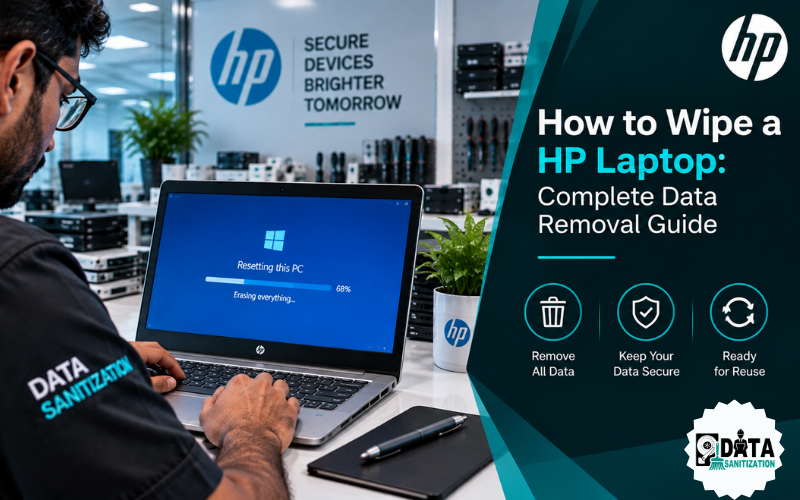
If you are selling, donating, recycling, returning or retiring an HP laptop, removing your files is an important step. But simply deleting documents or performing a normal reset may not be enough for every situation.
The good news is that Windows 10 and Windows 11 include a built-in “Reset this PC” option that can remove your files and reinstall Windows. Microsoft also provides a Clean data option for PCs being sold, donated or recycled.
However, Microsoft clearly notes that its consumer data-erasure functionality is not designed to meet government or industry data-erasure standards.
So, how do you properly wipe an HP laptop?
This guide explains how to wipe an HP laptop, what to do before wiping, the Windows 11 and Windows 10 steps, what happens to your data and when professional data sanitization is a better option.
Quick Answer: How to Wipe an HP Laptop
For a normal HP laptop running Windows 11:
Settings → System → Recovery → Reset this PC → Remove everything
For Windows 10:
Settings → Update & Security → Recovery → Reset this PC → Get started → Remove everything
If the laptop is being sold, donated or recycled, select the option to clean the drive/data when available. Microsoft says this makes removed files harder for another person to recover.
Before starting, back up everything important because the process can permanently remove your files.
Before You Wipe Your HP Laptop
Before you learn how to erase an HP laptop, prepare the device properly.
1. Back Up Your Important Files
Copy important:
- Documents
- Photos and videos
- Downloads
- Desktop files
- Browser bookmarks
- Work files
- Email archives
- Password-manager data
- Business documents
Check cloud storage as well as local folders. Do not assume that everything is already backed up.
2. Check the Storage Device
Your HP laptop may use:
- HDD
- SATA SSD
- NVMe SSD
This matters because HDD data wiping and SSD data sanitization are not exactly the same process.
For organizations, identifying the storage technology before selecting a sanitization method is especially important.
3. Sign Out of Your Accounts
Before handing over the laptop, sign out of accounts and services such as:
- Microsoft account
- Google account
- Adobe
- OneDrive
- VPN services
- Browser synchronization
- Business applications
- Other licensed software
HP also recommends deauthorizing accounts and removing security information before selling or recycling a laptop.
4. Keep Your BitLocker Recovery Key
If your HP laptop uses BitLocker or device encryption, make sure you have access to the recovery key before starting the reset.
Microsoft specifically recommends checking your BitLocker recovery key before resetting an encrypted PC.
How to Wipe an HP Laptop in Windows 11
If your HP laptop runs Windows 11, follow these steps.
Step 1: Open Settings
Click:
Start → Settings
Step 2: Open Recovery
Go to:
System → Recovery
Step 3: Select Reset This PC
Under Recovery options, find Reset this PC and select Reset PC.
Microsoft confirms this is the current Windows 11 reset path.
Step 4: Select Remove Everything
Windows will provide options such as keeping your files or removing everything.
Choose:
Remove everything
This removes personal files, applications and settings.
Step 5: Choose the Reinstallation Method
Depending on your system, Windows may offer:
- Cloud download
- Local reinstall
Cloud download obtains a fresh Windows image, while local reinstall uses files already present on the laptop.
Step 6: Choose the Data Cleaning Option
If your laptop is being:
- Sold
- Donated
- Recycled
- Given to another person
select the available Clean data option.
Microsoft says this cleans the drive and makes previously removed files harder for others to recover.
Step 7: Start the Reset
Confirm the settings and begin the process.
Do not force the laptop to shut down while Windows is resetting it. The screen may remain black for an extended period during the process.
How to Wipe an HP Laptop in Windows 10
Windows 10 uses a slightly different Settings layout.
Go to:
Start → Settings → Update & Security → Recovery
Under Reset this PC, select:
Get started
Then choose:
Remove everything
You may then select between Cloud download and Local reinstall, depending on your system.
Microsoft confirms that Reset this PC is available in both Windows 10 and Windows 11.
Important Windows 10 Note
Microsoft ended support for Windows 10 on October 14, 2025. The operating system can still run, but Microsoft no longer provides normal free security updates and technical support through Windows Update.
If you are preparing an older HP laptop for a new owner, it is worth checking whether the device can move to a supported version of Windows.
Is Factory Reset Enough to Wipe an HP Laptop?
This is one of the most important questions.
A factory reset and secure data sanitization are not always the same thing.
Windows Reset can remove your personal files and reinstall the operating system. The Clean data option is intended to make removed files harder to recover when a computer is sold, donated or recycled.
However, Microsoft states that its consumer data-erasure functionality does not meet government and industry data-erasure standards.
That distinction matters for:
- Government departments
- Banks
- Hospitals
- IT companies
- Enterprises
- Legal firms
- Defence organizations
- Data centres
- IT asset disposition companies
For these environments, a documented media sanitization process may be more appropriate.
HP Laptop HDD vs SSD: Does the Wiping Method Matter?
Yes.
Older HP laptops may contain traditional hard disk drives, while newer models commonly use SSD or NVMe storage.
HDD
A hard disk drive stores data magnetically. Appropriate software-based sanitization methods can be used depending on the required security level and final disposition.
SSD and NVMe
Solid-state drives work differently. They use flash memory and internal storage-management functions.
Therefore, you should not automatically treat an SSD like an old mechanical HDD.
For organizations handling sensitive information, the storage technology should be identified first and the sanitization method selected accordingly.
If you need professional SSD data sanitization, a media-specific process is preferable to simply applying an old HDD wiping technique.
What Built-In HP and Windows Tools May Miss
Built-in reset tools are useful for consumers, but businesses often need more than a successful reset screen.
A professional data sanitization process may require:
- Device identification
- Serial-number tracking
- Storage identification
- Sanitization method
- Verification
- Operator information
- Date and time
- Processing status
- Audit records
- Final disposition
- Sanitization report
This is especially important when hundreds or thousands of HP laptops are being retired.
A company may need to answer:
- Which laptop was wiped?
- Which storage device was processed?
- When was it wiped?
- Which method was used?
- Was the result verified?
A simple factory-reset screen does not necessarily provide this level of asset-level evidence.
How to Professionally Wipe HP Laptops in Bulk
For organizations replacing large numbers of HP laptops, manually resetting every device can become difficult to track.
A professional workflow should generally look like this:
Identify → Classify → Sanitize → Verify → Report → Reuse or Dispose
The laptop should first be recorded in the asset inventory.
Then the storage technology and data sensitivity should be identified.
Next, an appropriate sanitization method should be applied.
After sanitization, the result should be verified and documented.
Finally, the asset can move to its approved next stage, such as:
- Reuse
- Resale
- Redeployment
- Recycling
- Physical destruction
This approach supports better IT asset disposal and data-security controls.
Data Sanitization Pro for HP Laptop Data Wiping
For businesses, government departments and ITAD operations that need a more controlled workflow, Data Sanitization Pro can provide a stronger approach than relying only on a manual Windows reset.
Data Sanitization Pro is a Made-in-India data sanitization platform designed for enterprise, government, defence and other controlled environments.
It supports multiple storage technologies, including HDD, SSD, NVMe, USB, SD cards, RAID, NAS, SAN and other supported media.
The platform also supports sanitization methods including NIST 800-88 Clear, NIST 800-88 Purge, DoD 5220.22-M, Secure Erase, Enhanced Secure Erase and organizationally defined methods. It provides verification, real-time process monitoring, device information, SMART health information, bad-sector assessment and detailed reporting.
For restricted environments, offline and air-gapped deployment can also be supported.
This makes it useful when the requirement is not simply:
“Reset this HP laptop.”
but instead:
“Sanitize this asset, verify the result and keep an auditable record.”
What to Do After Wiping Your HP Laptop
Once the reset or sanitization process is complete, check the device before handing it over.
If You Are Selling the Laptop
Leave the laptop at the initial Windows setup screen so the new owner can configure it.
If You Are Recycling It
Make sure the required data-sanitization process is complete before transferring the device for recycling.
If Your Company Is Retiring It
Keep the sanitization report, asset information and final disposition record with your IT asset documentation.
For larger projects, professional IT asset disposition services can help manage the complete lifecycle.
HP Laptop Wiping Checklist
Before handing over your HP laptop, confirm:
- Important files are backed up
- Microsoft account is signed out
- Other important accounts are deauthorized
- BitLocker recovery key is available
- Storage type is identified
- Windows Reset is started
- Remove Everything is selected
- Clean data is enabled when appropriate
- Reset completes successfully
- Laptop reaches the Windows setup screen
- Professional sanitization is used when required
- Sanitization results are verified
- Report or certificate is retained for business assets
Final Thoughts
Knowing how to wipe an HP laptop is useful when you are selling, donating, recycling or replacing an old computer.
For normal personal use, Reset this PC → Remove everything → Clean data is the built-in Windows approach Microsoft recommends for devices being sold, donated or recycled.
But businesses and organizations may have a higher requirement.
If the laptop contains confidential customer information, employee data, financial records, government information or other sensitive data, a simple reset may not provide the level of verification, reporting and auditability required.
In those situations, use a controlled data sanitization process that matches the storage technology and security requirement.
For professional laptop wiping, HDD/SSD sanitization and IT asset disposal, Data Sanitization provides specialized data sanitization services. For software-based, verifiable and report-driven sanitization, Data Sanitization Pro provides a dedicated platform for organizations managing IT assets at scale.
Related Data Sanitization Guides
Frequently Asked Questions
1. How do I completely wipe an HP laptop before selling it?
Back up your files, sign out of your accounts, then use Reset this PC → Remove everything. If available, enable the Clean data option for a laptop being sold, donated or recycled. Microsoft recommends this option because it makes removed files harder for another person to recover.
2. How do I wipe an HP laptop running Windows 11?
Go to Settings → System → Recovery → Reset this PC → Remove everything. Select the appropriate reinstall option and enable Clean data if the laptop is leaving your control.
3. How do I wipe an HP laptop running Windows 10?
Go to Settings → Update & Security → Recovery → Reset this PC → Get started → Remove everything. Follow the on-screen instructions to complete the reset.
4. Is a factory reset enough to permanently erase an HP laptop?
Not necessarily for every security requirement. Windows provides a Clean data option for consumer scenarios, but Microsoft states that its data-erasure functionality does not meet government and industry data-erasure standards.
5. Can deleted files be recovered after wiping an HP laptop?
Recoverability depends on the storage technology, wiping method and how the data was removed. A normal deletion and a properly selected sanitization process are not equivalent. For sensitive information, use an appropriate and verifiable sanitization method.
6. What is the best way to wipe multiple HP laptops?
For business or ITAD projects, use an asset-level workflow that identifies each device, sanitizes the appropriate storage media, verifies the result and generates an audit record. Dedicated data wiping software can make large-scale laptop sanitization easier to manage and document.
Need Onsite Data Sanitization Services?
Do you want Data Sanitization Services to be provided at your location? No worries!! We got it covered. Our team members will be appointed to finish the job at your location after you book the appointment with us. Please feel free to contact us.