
External hard drives are widely used to store personal photographs, videos, business documents, financial records, customer information, project files and important backups. They provide additional storage space and make it convenient to transfer information between computers.
However, when an external hard drive is no longer required, you may decide to sell it, donate it, reuse it or send it for recycling. Before transferring the device to another person or organisation, one important step should never be ignored: permanently erasing the data stored on the drive.
Simply deleting files, emptying the Recycle Bin or formatting an external hard drive does not necessarily ensure permanent data removal. Depending on the storage technology and the method used, previously stored information may remain accessible through suitable data recovery techniques.
This creates a potential information security risk, especially when an external hard drive contains confidential business records, customer information, financial documents or personal files.
The right approach is to use professional Data Erasure Software that can perform appropriate disk sanitization, verify the erasure result and generate a data erasure certificate.
Data Sanitization Pro (DSP) is professional data destruction and data sanitization software designed to help users and organisations permanently erase data from supported HDDs, SSDs, NVMe drives, USB storage and other supported media.
In this complete guide, we explain why ordinary formatting is not enough, how external HDD and SSD data erasure works and how to use Data Sanitization Pro step by step to erase an external hard drive, verify the process and generate a certificate.
Why Is It Important to Permanently Erase an External Hard Drive Before Selling or Recycling?
An external hard drive can contain sensitive information even when you have not used it for months or years.
For example, it may contain:
- Personal photographs, videos and private documents.
- Business files and confidential company records.
- Customer and employee information.
- Financial statements, invoices and accounting records.
- Project files and office backups.
- Emails, saved documents and other private information.
- Database backups and operational information.
- Old files that you no longer remember storing.
If you sell, donate or recycle an external hard drive without proper data sanitization, another person may potentially access information that you intended to remove.
For businesses, the consequences can be more serious. Retired storage devices may contain confidential company information, customer records, employee details and commercially sensitive documents.
A suitable Permanent Data Erasure process helps make previously stored information inaccessible before the storage device moves to another user or enters the recycling process.
This is why secure data destruction should be an important part of IT asset management, IT Asset Disposition (ITAD), equipment refurbishment and e-waste recycling.
Is Formatting an External Hard Drive Enough to Permanently Destroy Data?
No. Normal formatting and permanent data destruction are not the same.
When you delete a file, the operating system generally removes its reference from the file system. The storage space becomes available for reuse, but the underlying information may remain on the storage media.
Similarly, a quick format generally changes the file system structure without performing a complete sanitization of the previously stored information.
This means that simply deleting files or formatting an external HDD should not be considered a reliable method of permanent data destruction.
Professional Hard Drive Eraser Software uses appropriate sanitization methods to make stored information inaccessible.
The selected method should depend on:
- The type of storage device.
- The storage technology (HDD or SSD).
- The condition of the device.
- The sensitivity of the stored information.
- The applicable data sanitization standard.
- The intended use of the device after erasure.
For organisations, a complete data destruction process should also include verification and proper documentation.
Understanding External HDD and SSD Data Erasure
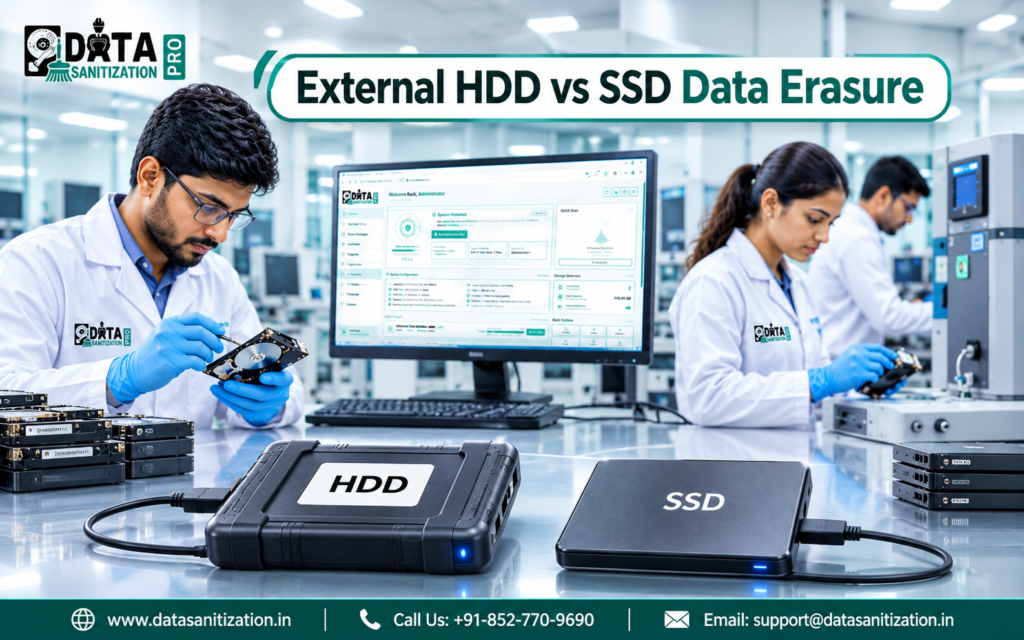
Before permanently erasing an external hard drive, it is important to understand which storage technology it uses.
Although external HDDs and SSDs may look similar, their internal storage technologies are different.
External HDD Data Erasure
A Hard Disk Drive (HDD) stores information on magnetic platters.
An appropriate HDD data sanitization method can overwrite addressable storage locations according to the selected erasure standard.
Professional HDD Data Wiping Software helps perform the selected operation across the supported physical storage device.
External HDDs are commonly used for:
- Personal computer backups.
- Business data storage.
- Office document storage.
- Photography and video backups.
- IT equipment storage.
- Long-term data archiving.
Before selling or recycling an external HDD, it is important to use an appropriate data destruction method and verify the result.
External SSD Data Erasure
A Solid State Drive (SSD) stores information in flash memory rather than magnetic platters.
SSD technology uses features such as wear levelling, garbage collection and internal memory management. These features affect how information is stored and managed.
Therefore, ordinary file deletion or a basic overwrite method may not be sufficient for every SSD.
An appropriate SSD Data Erasure or device-supported sanitization method should be selected according to the SSD technology and its capabilities.
Professional data sanitization software helps users manage different storage technologies through suitable erasure methods rather than applying the same approach to every device.
How to Permanently Erase Data from an External Hard Drive Using Data Sanitization Pro
If you want to permanently erase data from an external HDD or SSD, Data Sanitization Pro provides a dedicated Disk Sanitization module.
The software allows you to identify the connected storage device, select an appropriate data destruction method, start the sanitization process, verify the result and generate an individual data erasure certificate.
Follow these steps carefully.
Step 1: Visit the Data Sanitization Pro Website
First, visit the official website: https://www.datasanitizationpro.com/
Data Sanitization Pro is professional data erasure and data destruction software designed for individuals, IT professionals, enterprises, ITAD companies, refurbishers and e-waste recycling businesses.
Visit the website and navigate to the software download section.
Review the available product information and system requirements before downloading.
Step 2: Download the Data Sanitization Pro Software
Download the Data Sanitization Pro software from its official website.
The software is designed for supported Windows environments, including Windows 10, Windows 11 and supported Windows Server systems.
Official download page:
Download the installation package and save it to your computer.
Make sure you download the software from the official DSP website rather than an unknown third-party download source.
Step 3: Install and Run the Software
After downloading the installation package, open it and follow the installation instructions.
Complete the installation process and launch Data Sanitization Pro with the required administrator permissions.
Once the software opens, you can access its available data sanitization modules and storage device management options.
Connect your external hard drive to the computer using a compatible USB connection.
Make sure the external hard drive is detected properly before proceeding.
Step 4: Select the Disk Sanitization Option
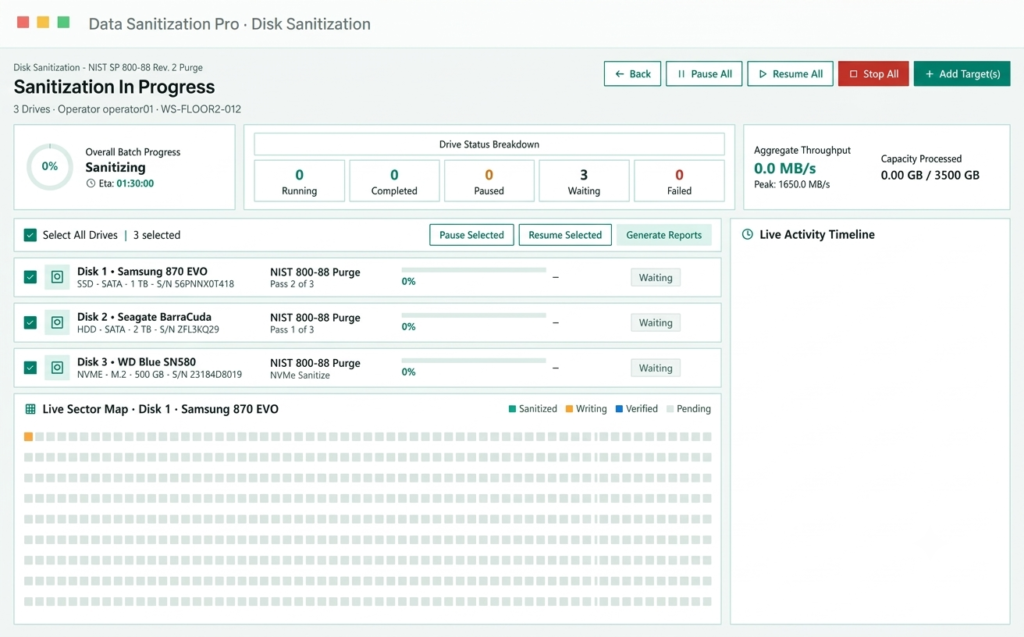
From the Data Sanitization Pro interface, select the Disk Sanitization module.
Disk Sanitization is used to erase data from an entire selected physical storage device.
This is different from file and folder sanitization, partition sanitization or free-space wiping.
If your objective is to permanently erase the entire external hard drive before selling, donating or recycling it, select the Disk Sanitization option.
Step 5: Find and Identify Your External Hard Drive
After opening Disk Sanitization, review the list of available physical storage devices.
Locate your connected external hard drive.
Before selecting it, carefully check the available device information, such as:
- Drive manufacturer.
- Model number.
- Storage capacity.
- Serial number.
- Drive type.
- Interface information.
For example, if you have connected a 1TB external HDD, confirm that the listed device matches the physical drive you intend to erase.
This step is extremely important.
Always verify the correct physical drive before starting permanent data erasure.
Do not select your computer’s internal storage drive or another device containing information you still need.
Step 6: Select the External Hard Drive
Once you have identified the correct external hard drive, select it in the Disk Sanitization interface.
If multiple storage devices are connected, carefully check each device before making your selection.
Data Sanitization Pro supports processing multiple selected physical drives in parallel in supported configurations. This is particularly useful for IT teams and businesses handling several storage devices.
For a single external hard drive, simply select the intended device and proceed to the sanitization configuration.
Step 7: Select an Appropriate Data Destruction Method
This is one of the most important steps in the entire data destruction process.
After selecting your external hard drive, choose the appropriate Data Erasure Standard or sanitization method available in Data Sanitization Pro.
The selection should depend on the storage technology, organisational policy and required level of sanitization.
DSP supports 25+ international data erasure standards and methodologies, including:
- NIST SP 800-88 Rev. 2.
- DoD 5220.22-M.
- IEEE 2883.
- HMG IS5.
- BSI-related methods.
- Other supported data sanitization methodologies.
NIST SP 800-88 Rev. 2 provides guidance for selecting appropriate media sanitization methods. It includes Clear and Purge approaches for different sanitization requirements.
For an external HDD, an appropriate overwrite-based method may be selected according to the required sanitization outcome.
For an external SSD, the method should be compatible with its flash storage technology and supported sanitization capabilities.
Do not assume that using more overwrite passes always provides better protection. The appropriate method should be selected according to the storage medium and applicable requirements.
Selecting the correct data destruction method helps ensure that the process is appropriate for the device being sanitized.
Step 8: Start the Permanent Data Erasure Process
After selecting the external hard drive and configuring the required sanitization method, carefully review your selections.
Once you are certain that the correct drive and method have been selected, start the data sanitization process.
Data Sanitization Pro will begin the configured Permanent Data Erasure operation.
During the process, allow the software to complete its work.
The time required may depend on:
- External hard drive capacity.
- HDD or SSD technology.
- Selected erasure method.
- USB connection and transfer speed.
- Device condition.
- Verification requirements.
Do not disconnect the external hard drive or interrupt the operation while sanitization is in progress.
For organisations handling multiple devices, DSP provides individual processing information for selected drives.
Step 9: Wait for the Data Erasure and Verification Process to Complete
After starting the operation, allow the software to complete the configured sanitization workflow.
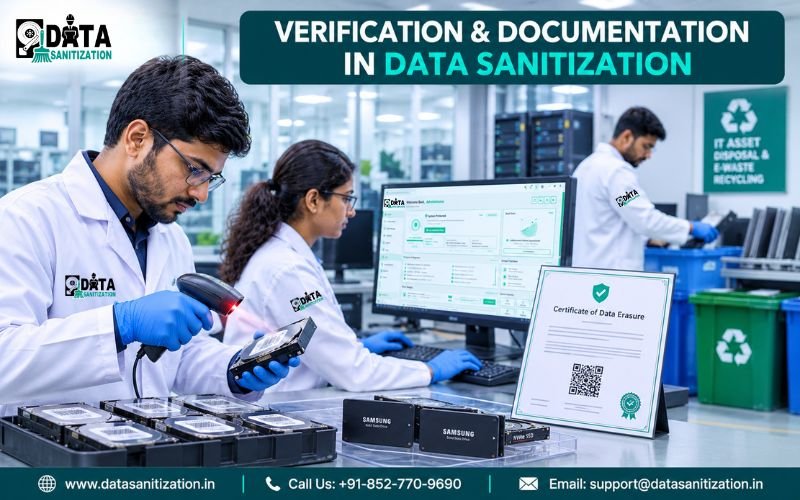
The verification stage is important because starting or completing a writing operation alone should not automatically be treated as proof of successful data erasure.
Data Sanitization Pro provides post-sanitization verification capabilities to check and record the outcome.
If the operation and verification complete successfully, the device can be recorded as successfully sanitized according to the selected method.
If an error occurs or verification fails, do not treat the drive as successfully sanitized. Review the reported result and follow the appropriate corrective or physical destruction process.
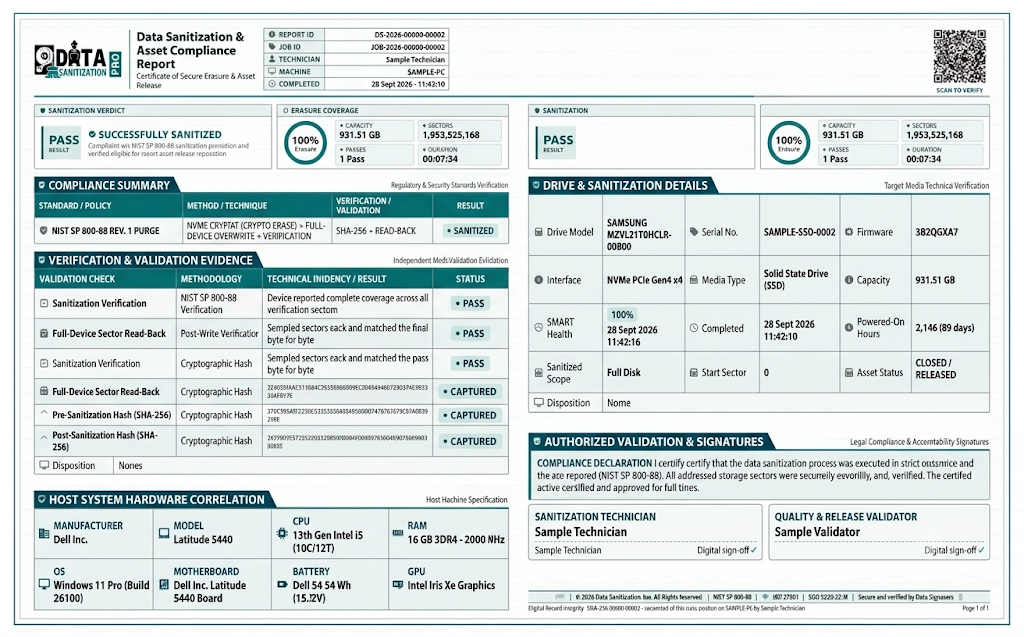
Step 10: Generate and Save the Data Erasure Certificate
After the sanitization process is completed, Data Sanitization Pro generates an individual data erasure certificate for the processed asset.
The certificate provides important information about the operation and its outcome.
Depending on the selected workflow, the certificate can document:
- Device manufacturer and model.
- Storage capacity.
- Serial number.
- Selected data erasure standard.
- Sanitization details.
- Verification result.
- Process timestamps.
- Operator information.
- Relevant reporting and audit details.
DSP generates a signed PDF certificate for each processed asset.
Save the certificate and maintain it with the corresponding device or asset record.
For businesses, this documentation can be useful for internal audits, IT asset management, ITAD operations, refurbishment, resale and recycling records.
The complete workflow is simple: Download → Install → Run → Select Disk Sanitization → Identify the External Drive → Select Erasure Method → Start → Verify → Generate Certificate.
Why Choose Data Sanitization Pro for External Hard Drive Data Destruction?
Selecting suitable data erasure software is important when handling personal or confidential business information.
Data Sanitization Pro brings permanent data erasure, verification and reporting capabilities together in a dedicated software solution.
Here are some important capabilities.
1. Supports 25+ International Data Erasure Standards
Different organisations may have different data sanitization requirements.
DSP supports 25+ international erasure standards and methodologies, including NIST SP 800-88 Rev. 2, DoD 5220.22-M and IEEE 2883.
This gives users flexibility when selecting an appropriate data destruction method for supported storage devices.
2. Permanent Data Destruction for Supported Storage Devices
DSP provides software-based logical data sanitization for supported HDDs, SSDs, NVMe drives, USB storage and other supported media.
It helps users permanently erase previously stored information through appropriate sanitization methods.
The software is suitable for managing storage devices before reuse, resale, refurbishment, redeployment or retirement.
3. Data Erasure Verification
A professional data destruction process should not stop at the wiping operation.
DSP includes post-sanitization verification capabilities to check and document the result.
This helps organisations maintain a clearer record of which devices completed the sanitization process successfully.
4. Individual Signed Data Erasure Certificates
DSP generates an individual signed PDF certificate for each processed asset.
These certificates provide device-specific documentation rather than relying on a general statement that a group of drives has been wiped.
This is particularly useful for ITAD companies, enterprises and businesses handling multiple storage devices.
5. Multiple Drive Sanitization
Businesses may need to erase several HDDs, SSDs and other storage devices as part of a single project.
DSP supports parallel processing of multiple selected physical drives in supported configurations.
Each selected drive can have its own processing information, verification outcome and certificate.
6. Offline Data Sanitization
Some businesses operate in restricted IT environments where internet connectivity is limited or not permitted.
DSP supports offline data erasure workflows, making it suitable for controlled environments where secure data processing is important.
7. Bootable USB and PXE Support
DSP also supports bootable USB and PXE network boot workflows.
These options are useful when sanitizing a computer’s operating system drive, which cannot be erased while Windows is actively running from it.
Booting through supported USB or PXE environments allows the system drive to be processed outside the active Windows installation.
Who Needs Professional Data Erasure and Data Destruction Software?
Permanent data sanitization is important for organisations that regularly handle storage devices containing confidential information.
Professional data destruction software can support several industries.
ITAD Companies
IT Asset Disposition companies manage retired computers, laptops, servers, HDDs and SSDs before resale, refurbishment or recycling.
Professional ITAD Data Erasure Software helps them perform device-level sanitization, verification and certification.
E-Waste Recycling Companies
E-waste recyclers handle large quantities of retired electronic equipment.
Before recycling data-bearing storage devices, appropriate data sanitization helps reduce the risk of exposing previously stored information.
Computer Refurbishment Businesses
Refurbishment companies often prepare used computers and storage devices for resale.
Permanent data wiping helps remove previous users’ information before equipment is transferred to another customer.
Enterprise IT Departments
Enterprises regularly replace computers, storage devices and other IT assets.
Professional data destruction software can help IT teams establish a consistent process for sanitizing retired devices and maintaining erasure documentation.
Data Centres
Data centres manage large numbers of HDDs, SSDs and enterprise storage devices.
A structured data erasure process helps them manage storage equipment before redeployment, retirement or disposal.
Banking and Financial Institutions
Financial institutions handle confidential customer information, transaction records and business documents.
Secure data sanitization is important when storage devices containing sensitive information are retired or replaced.
Healthcare Organisations
Healthcare organisations may manage storage devices containing confidential patient and operational records.
Appropriate data erasure helps support secure information disposal practices.
Data Erasure vs Physical Data Destruction: What Is the Difference?
Data erasure and physical data destruction are two different approaches to handling stored information.
Data erasure is a software-based or device-supported sanitization process that makes stored information inaccessible through an appropriate method while potentially allowing the storage device to remain usable.
Physical data destruction involves physically damaging the storage media through processes such as shredding or other approved destruction methods.
The correct approach depends on the device condition, security requirements and whether the storage device needs to be reused.
Data Sanitization Pro performs software-based logical data erasure. It does not physically shred or damage the external hard drive.
When a drive is working and an appropriate sanitization process can be completed and verified, it may be suitable for reuse or resale according to the applicable requirements.
When a drive is damaged or cannot be reliably sanitized, physical destruction may need to be considered through a separate process.
This distinction is important for responsible data destruction and IT asset management.
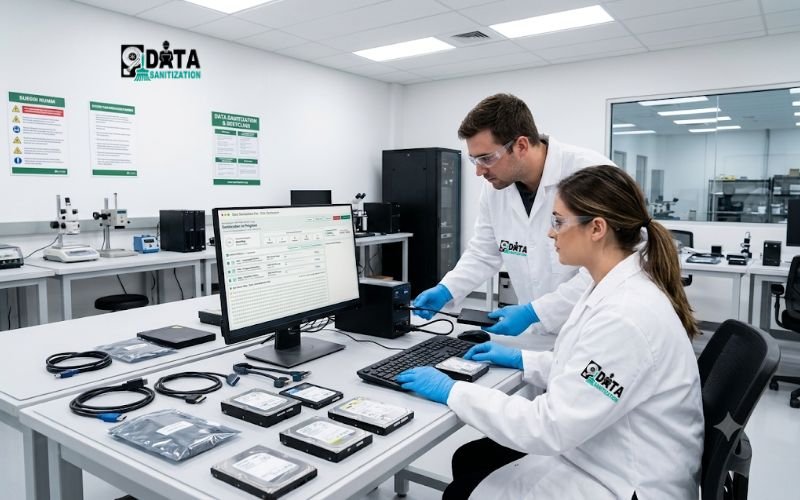
Best Practices Before Selling or Recycling an External Hard Drive
Before transferring an external hard drive to another person or sending it for recycling, follow these recommendations:
- Check whether the external drive contains personal or confidential information.
- Back up any files you still need.
- Identify whether the device is an HDD or SSD.
- Check the device condition and connection.
- Use professional data sanitization software.
- Select an appropriate data erasure standard.
- Verify that the sanitization process has completed successfully.
- Generate and save the individual data erasure certificate.
- Maintain the certificate with your asset records.
- Arrange reuse, resale or recycling according to the device condition.
Following these practices helps make the data disposal process more organised and secure.
Conclusion:
An external hard drive may contain important personal information, confidential business records and sensitive company data even when you no longer use it.
Before selling, donating, reusing or recycling the device, make sure its stored information is properly sanitized.
Deleting files or performing a normal format should not be considered a substitute for permanent data erasure. Selecting an appropriate sanitization method, verifying the outcome and maintaining proper documentation are important parts of secure data destruction.
With Data Sanitization Pro, you can follow a structured process to permanently erase data from supported external HDDs and SSDs.
Simply visit the official DSP website, download and install the software, open the Disk Sanitization module, identify your external hard drive, select an appropriate data destruction method and start the sanitization process.
After the operation and verification are completed, DSP generates an individual signed PDF data erasure certificate for the processed device.
Whether you are an individual user, IT professional, ITAD company, computer refurbisher, enterprise or e-waste recycler, professional data erasure software can help make storage device sanitization more organised, verifiable and easier to document.
Do not just delete your data. Permanently erase it, verify the result and keep proof of the process.
Choose Data Sanitization Pro for Professional Data Erasure
Visit the official website:
https://www.datasanitizationpro.com/
Download the software and explore its data sanitization capabilities.
Erase. Verify. Certify.
Data Sanitization Pro – Professional Data Erasure Software for HDD, SSD, NVMe, USB and other supported storage devices.
Frequently Asked Questions
How can I permanently erase data from an external hard drive?
You can use professional data erasure software such as Data Sanitization Pro. Connect the external drive, open the Disk Sanitization module, identify the correct physical drive, select an appropriate sanitization method and start the process. Allow verification to complete and save the generated data erasure certificate.
Is formatting an external hard drive enough to destroy data permanently?
No. Normal formatting does not necessarily make all previously stored information inaccessible. For confidential information, use an appropriate permanent data sanitization method with verification.
What is the best software to erase an external hard drive?
The right software should support the storage technology, offer suitable erasure standards, provide verification and generate detailed data erasure reports. Data Sanitization Pro combines these capabilities for supported storage devices.
Can Data Sanitization Pro erase external HDDs and SSDs?
Yes. DSP supports HDD and SSD data sanitization. External storage devices can be processed when their underlying physical drives are properly detected and accessible through a supported connection.
Does Data Sanitization Pro support NIST SP 800-88 Rev. 2?
Yes. NIST SP 800-88 Rev. 2 is among the supported data erasure standards in Data Sanitization Pro.
How long does it take to permanently erase an external hard drive?
The time depends on the drive capacity, storage technology, selected erasure method, connection speed, device condition and verification requirements. Larger drives and certain sanitization methods may require more processing time.
Does Data Sanitization Pro generate a data erasure certificate?
Yes. DSP generates an individual signed PDF certificate for each processed asset. It records relevant device details, the selected erasure method and the verification outcome.
Can I erase multiple external hard drives at the same time?
DSP supports parallel sanitization of multiple selected physical drives in supported configurations. Each drive has its own processing information and certificate.
Can an external SSD be permanently erased using data erasure software?
Yes, provided the SSD is supported and the appropriate sanitization method is available for its technology and configuration. SSD sanitization should account for flash memory management and device capabilities.
What should I do if my external hard drive is not detected?
Check the USB cable, connection, power supply and drive enclosure. If the drive remains undetected or has hardware problems, it may require further assessment. Do not assume that the drive has been sanitized if the software cannot access and process it.